Get Up & Running in 10 Minutes
Follow this guide once and SnapFill Pro will handle the rest. From install to your first AI-drafted cover letter โ step by step.
Install the Extension ๐ ๏ธ
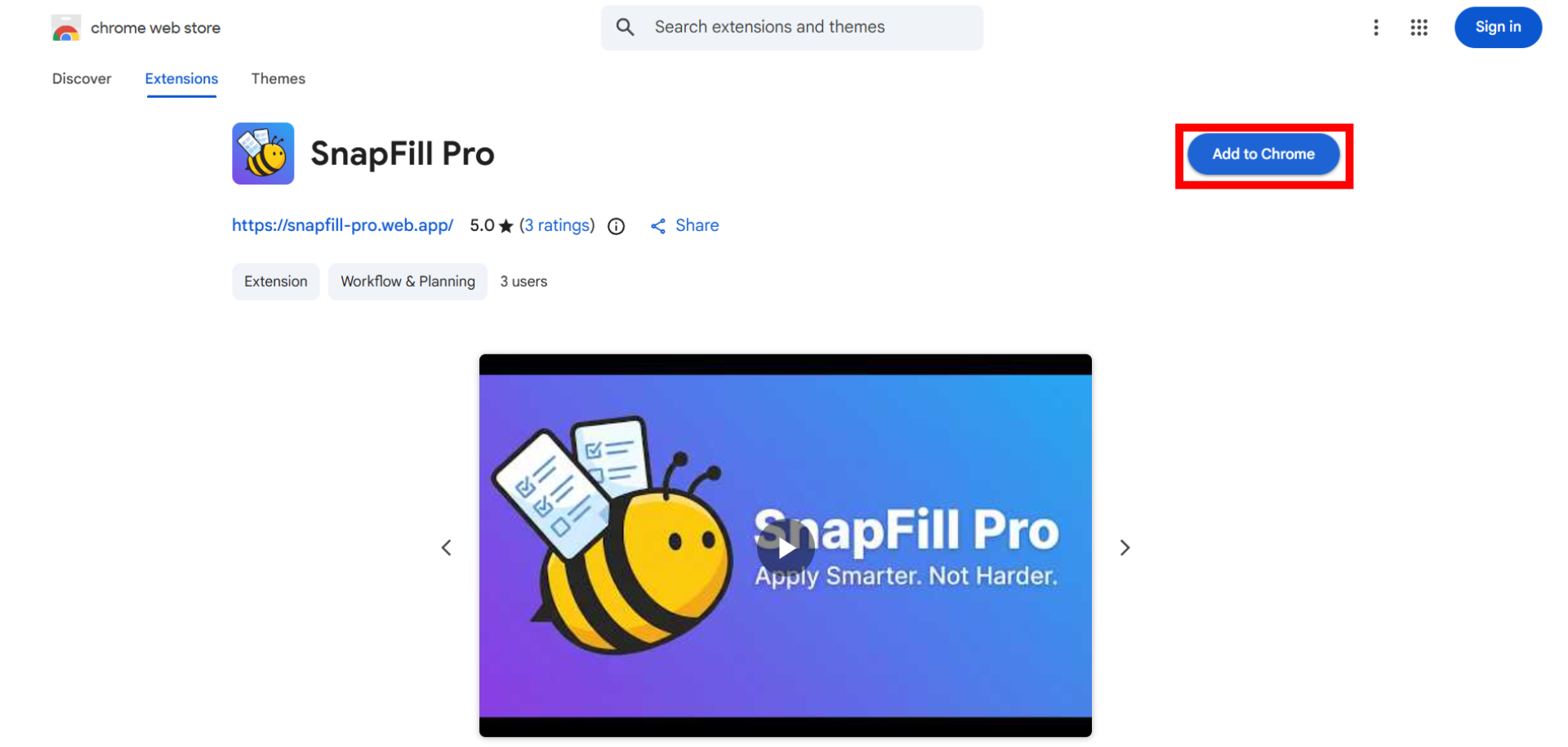
Add SnapFill Pro to Chrome โ it takes 30 seconds.
Add to Chrome
Click the button below to open the SnapFill Pro page on the Chrome Web Store. Click 'Add to Chrome' and confirm the prompt. The extension will install automatically.
Set Up Your Identity ๐ค
Tell the Bee who you are. This only takes a few minutes and you never have to do it again.
Open the Dashboard
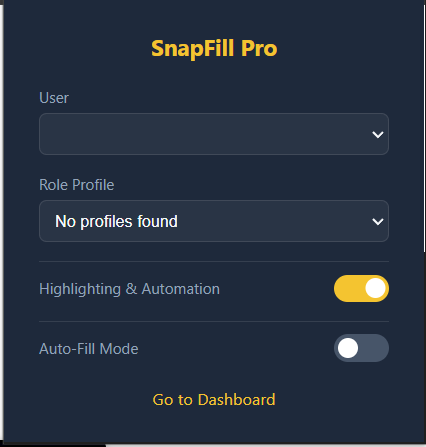
Click the SnapFill Pro bee icon in your toolbar. In the popup, click 'Open Dashboard'. This opens the full extension dashboard in a new tab โ your command centre.
Add a User
In the Dashboard, click '+ Add New' and enter your name. SnapFill Pro supports multiple users on the same browser โ useful if you share a device.
Create a Role Profile
Go to the Role Profiles tab. Click 'Create Profile' and name it after your target role โ for example, 'Senior Data Engineer' or 'Frontend Developer'. This profile stores your tailored content for that job type.
Connect Your AI Brain ๐ง
SnapFill Pro uses a BYOK (Bring Your Own Key) model โ you plug in your own free API key. Your key stays in your browser, never our servers.
Go to AI Brain Settings
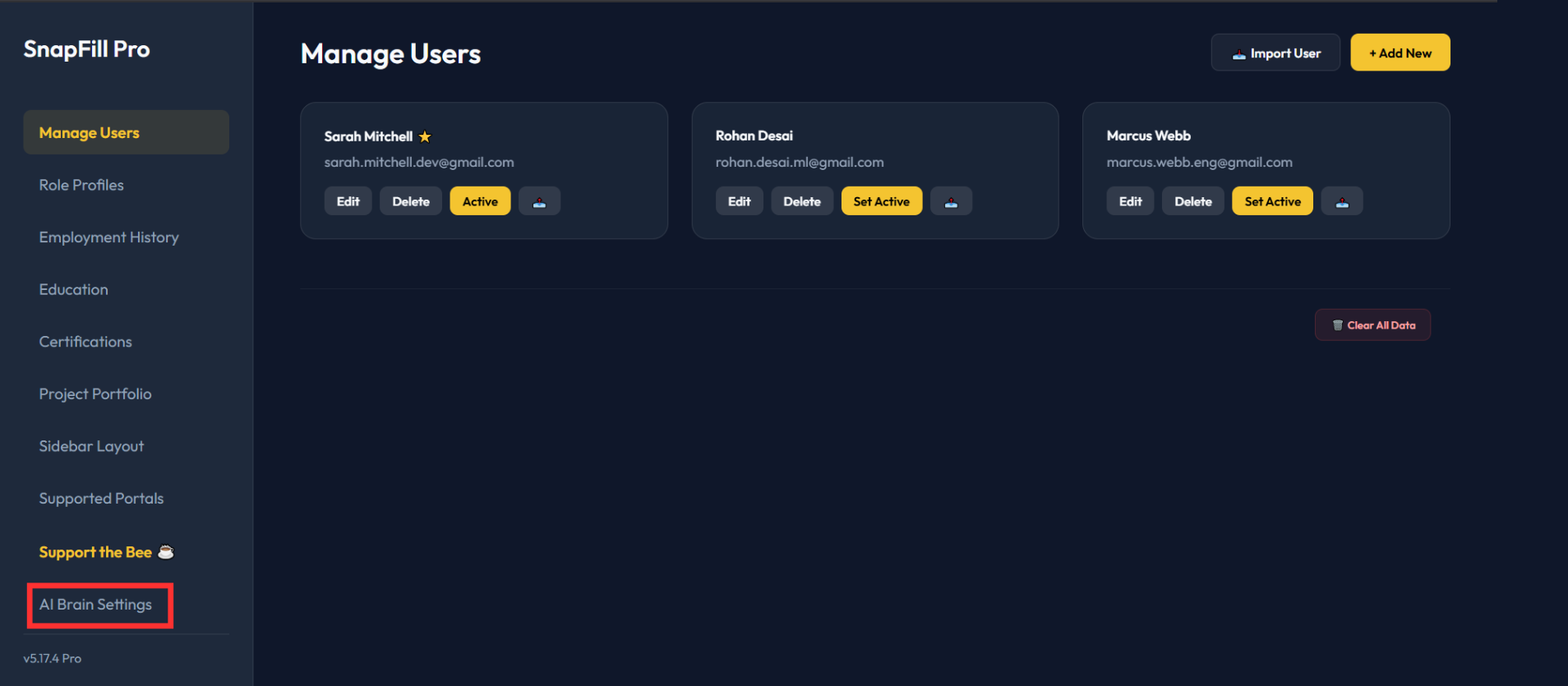
In the Dashboard, click 'AI Brain Settings' in the left sidebar. This is where you configure your AI provider and paste your key.
Get Your Free Gemini API Key
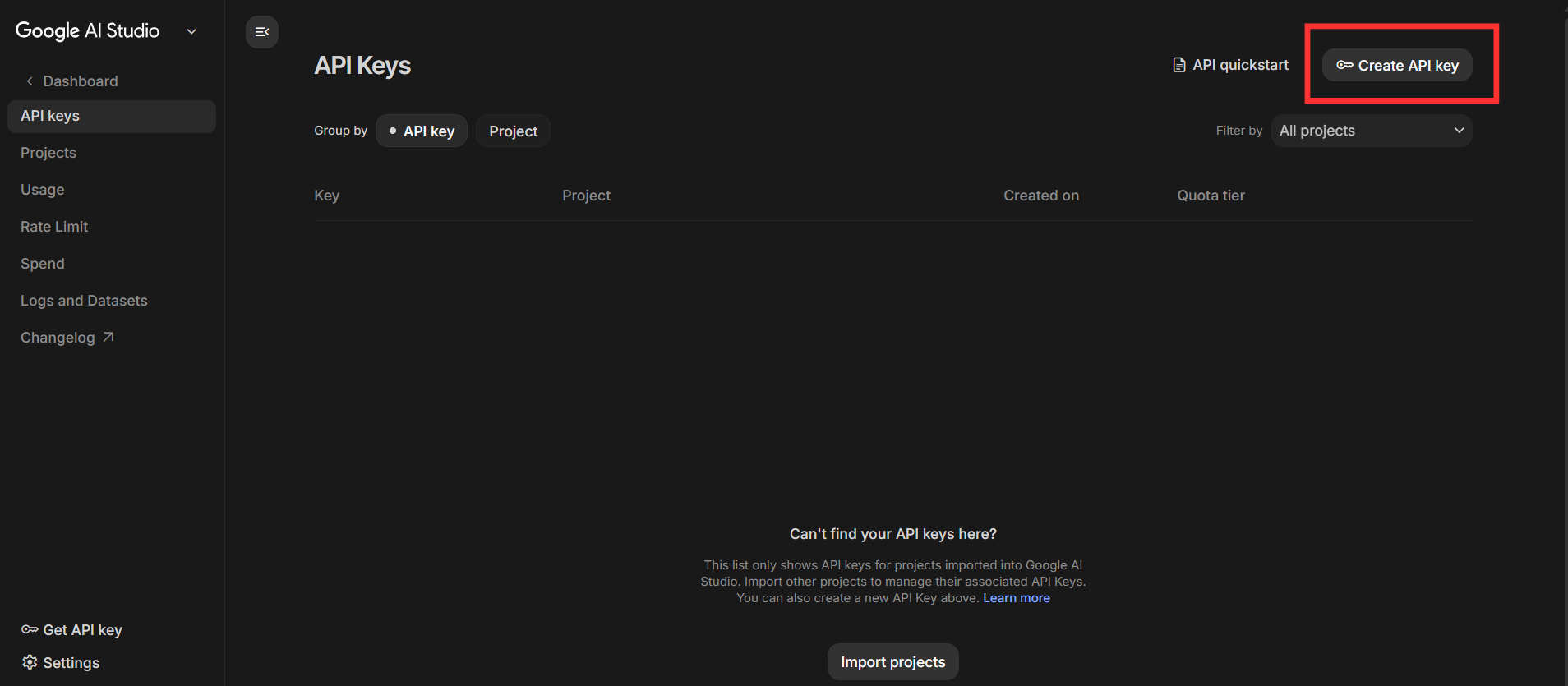
Open a new tab and go to aistudio.google.com. Sign in with your Google account, click 'Get API Key' in the sidebar, then 'Create API Key in new project'. Copy the generated key.
Paste & Save
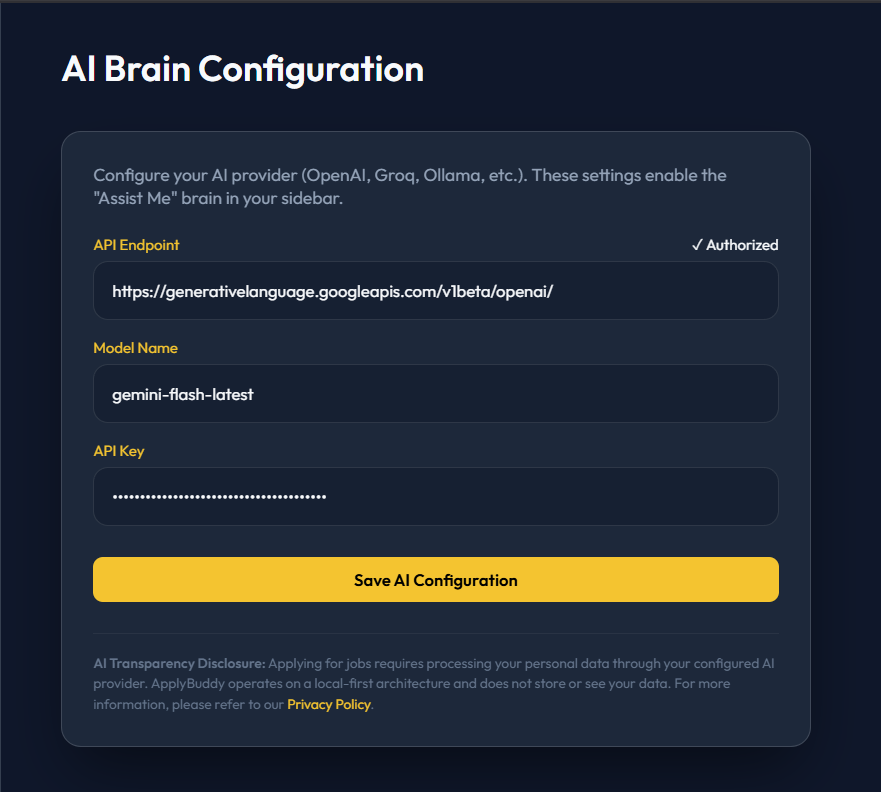
Back in AI Brain Settings: select 'Google Gemini' as the provider, paste your key into the API Key field, and click Save. You'll see a green 'Connected โ' status when it's working.
Use these exact values in the AI Brain Settings:
https://generativelanguage.googleapis.com/v1beta/openai/ gemini-flash-latest
Build Your Portfolio ๐๏ธ
The more you feed the Dashboard, the less you'll ever type on a job portal again.
Add Your Employment History
Go to the Employment tab and add your last 3โ4 roles. Include company name, job title, dates, and a brief summary. The AI uses this to tailor your cover letters and answer experience questions.
Add Education
Go to the Education tab and add your degrees, certifications, and any relevant coursework. Include the institution, field of study, and graduation year.
Add Your Top Projects
Go to the Projects tab and add your best GitHub projects or personal work. Include a title, tech stack, and 2โ3 lines about the impact or outcome. Projects are active by default โ the AI automatically pulls them into responses.
Add Certifications (Optional)
If you have professional certifications (AWS, GCP, Terraform, etc.), add them in the Certifications tab. SnapFill tracks expiry dates so you're never caught with a lapsed credential on your application.
Choose Your Resume Strategy ๐
SnapFill Pro supports two approaches. You can use both โ they're not mutually exclusive.
Master Resume (Autofill)
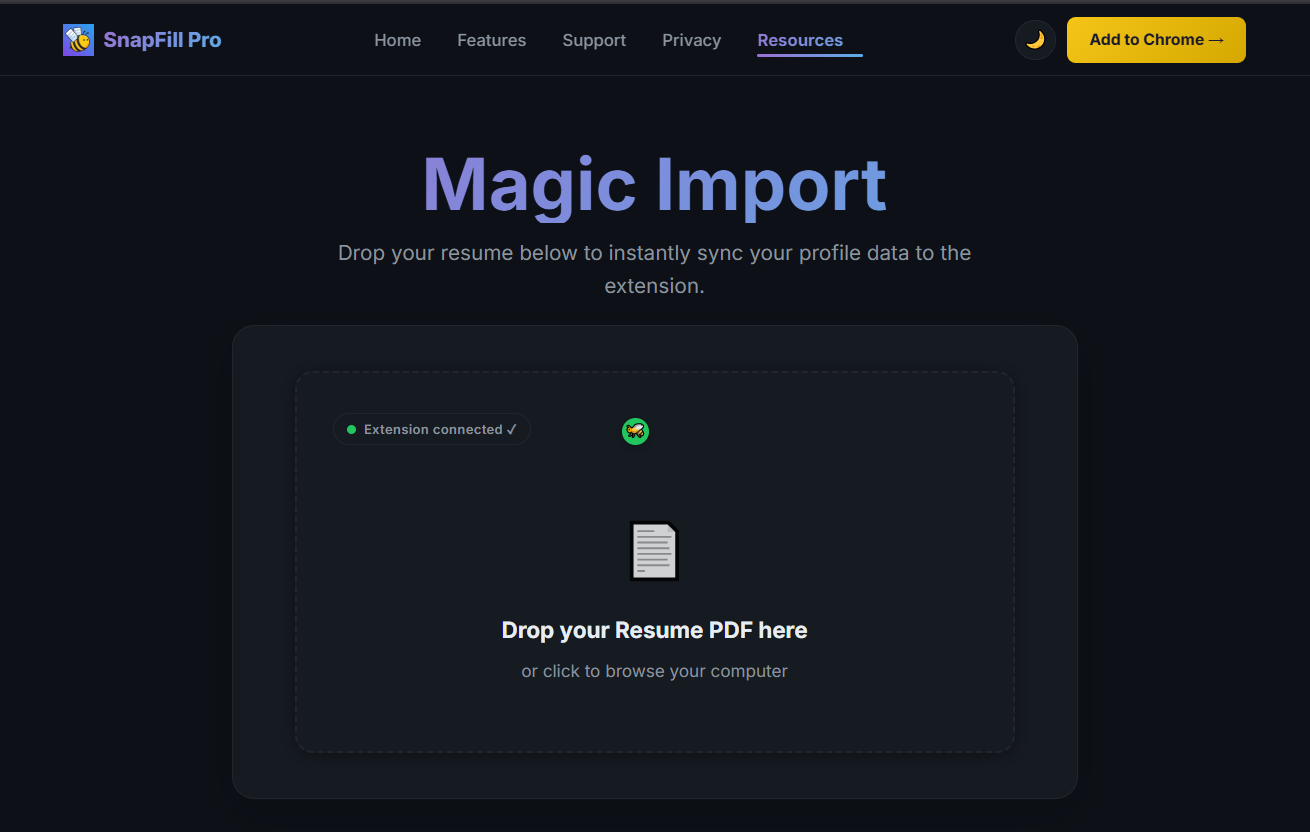
Upload your polished PDF resume once. SnapFill will autofill resume upload fields across every job portal automatically. On the fly, you can also rename the file strategically โ e.g., SoftwareEngineer_Google_YourName.pdf โ without touching the original.
LaTeX Resume (Per-JD)
For each job, paste the JD into the sidebar and click Generate LaTeX Resume. The AI crafts a fully tailored, ATS-optimised resume with keywords from the JD baked in. Copy the LaTeX code to the built-in compiler and download your PDF.
Your First Application ๐
The moment it all clicks. Navigate to any job and let SnapFill do the heavy lifting.
Navigate to a Job Portal
Go to LinkedIn, Naukri, Workday, Greenhouse, or any job board. Open a specific job listing you want to apply to.
Wake Up the Bee
You'll see a popup or indicator saying 'SnapFill is Dormant' โ this is a privacy feature. Click 'Enable SnapFill Here' to activate it for this site. You only need to do this once per domain.
Analyse the Job Description
In the sidebar, click 'Analyze Job Brief'. SnapFill will scan the entire JD and return a match score, tech stack breakdown, and strategic angle โ telling you exactly how to position yourself for this specific role.
Use the Magic Bee Icons
Look for the โจ Magic Bee icons next to large text areas in the application form. Click any one to have the AI instantly draft a tailored, JD-aware answer for that specific field.
One-Click Autofill
For standard fields (email, phone, name, role), just click the corresponding item in the sidebar. SnapFill will fill the currently focused field instantly.
Power User Tips ๐
Once you're comfortable with the basics, these features give you a serious edge.
Question Translator
Stuck on a vague behavioural question? Paste it into the sidebar's Question Translator. It decodes the recruiter's hidden intent and tells you exactly what they're really asking.
Export / Import Brain
Got a new laptop? In the Dashboard, go to Manage Users โ Export. Download your entire career profile as a JSON file and import it on any device in seconds.
Multiple Role Profiles
Targeting Data Engineering and Backend roles simultaneously? Create a separate profile for each. Switch the active profile before generating content to keep everything on-brand for that niche.
Writer Tone
In the sidebar, choose your tone โ Standard, Technical, Heartfelt, or Fast. Use Technical for engineering roles, Heartfelt for mission-driven companies, Fast when you're applying in bulk.
Ready to Apply Smarter? ๐
You've got the full SnapFill Pro setup. Now go get that job.
Need help? Visit Support โ